Note from the manufacturer: Before you begin: Ensure the Medikro Spirometer device is properly connected to the computer before you begin. Please click here for troubleshooting information if the green light does not appear on the device. Without the device connected, the Medikro Spirometry Software will not have the license information from the device to produce a complete PDF report.

Launch Medikro Spirometry
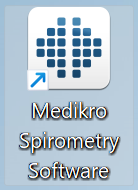
1. Start Medikro Spirometry from the desktop or Start menu. As a manual PDF export is required, the Medikro Spirometry software needs to be opened separately, even if you are using LEMR.
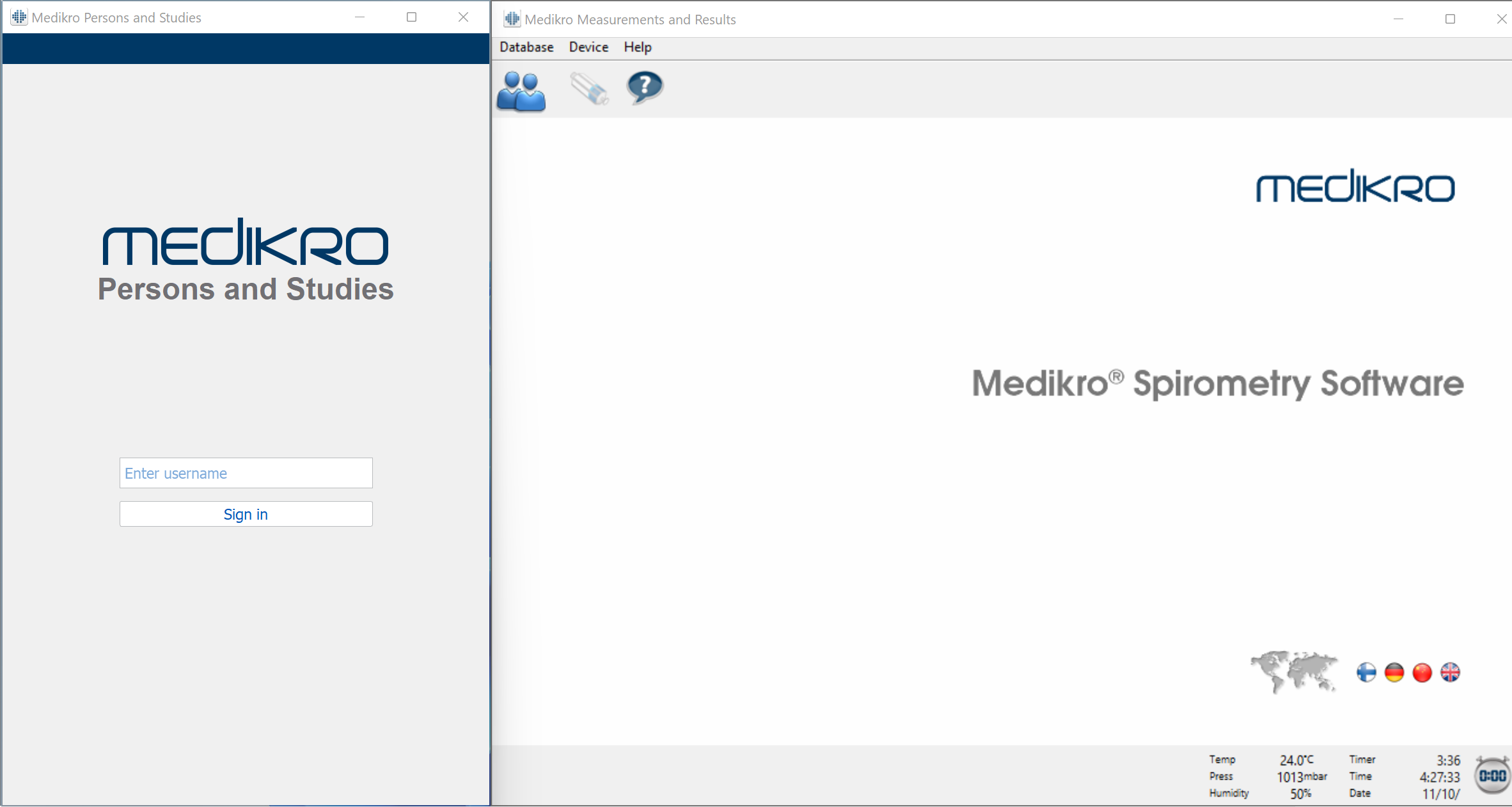
2. When the Medikro interface loads, it may ask you to sign in. By default this is simply logging who uses the program. You can enter any name in this field. If you are not prompted for this, move on to the next step.
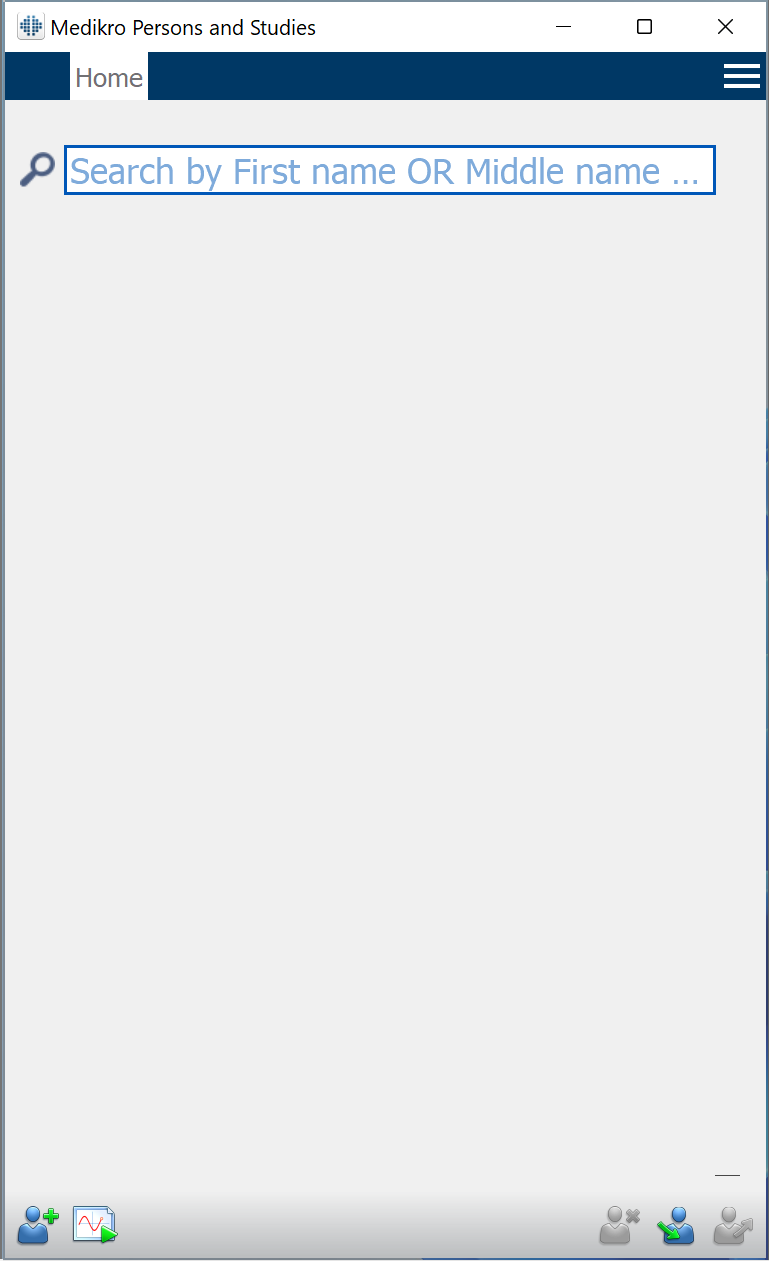
3. Search for an existing person. Type in a name in the search field.
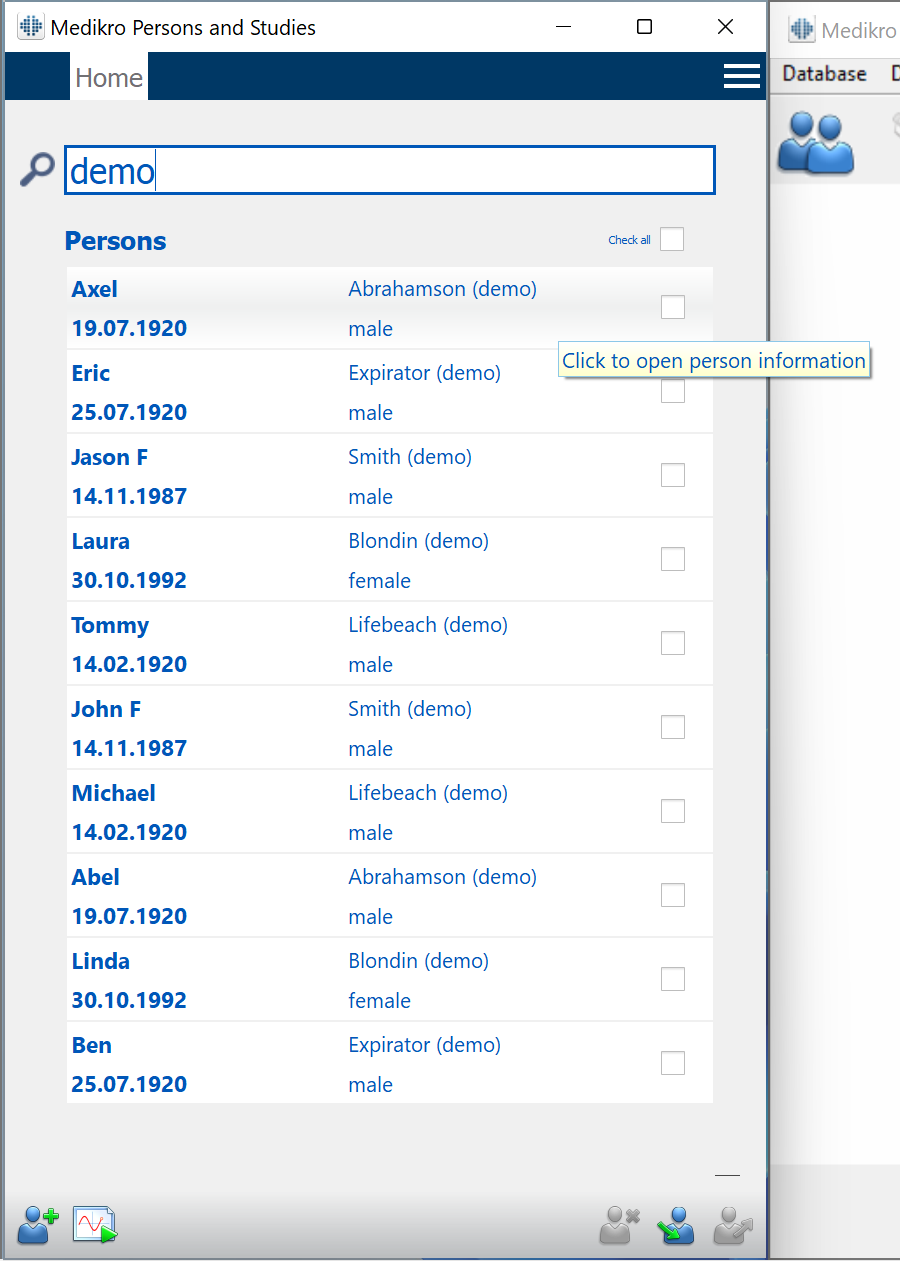
4. Then click on a person to view their test sessions.
5. With the patient open, click on the study that you need to produce a report for; this will open the study in the Measurements and Results window on the right.
Important: If you see multiple study sessions for the same day at around the same time, you will need to go through each one until you find the test data you need to make a report for. Some of these studies/sessions may be “ghost” sessions with no data in them.

6. Click the Report button, then either click the Print button (for a physical copy) or go to Study then Save to PDF file. You will have to select a folder to save the PDF into; remember the path for later.
When exporting a PDF, first go to the Show Report button (looks like 3 pieces of paper) so that you are viewing the final report. Then go to Study then Save to PDF file… The exported PDF will show the full report data.

7. Click the black square with the white X in it (close study) button at the top right corner and wait a moment whil the study is saved.

8. After the report has processed, click the close button on the Medikro Persons and Studies window on the left side of the screen.

9. Open the folder where the PDF was saved; the PDF can be manually imported into the patient's record in your EMR system from here.
Need Help?
LEMR customers can get help by contacting LEMR Support.