This guide provides a step-by-step procedure for performing an ABPM test using Welch Allyn CardioPerfect with LEMR integration to Best Practice (Bp Premier). CardioPerfect is only compatible with Welch Allyn branded ABPM devices.
If you have already programmed the recorder, and the patient has come back to import the results from the device, go to the Download Data from the Recorder section. Otherwise, always start at the Program the Recorder section below.
The instructions below are designed for LEMR version 2023.10.9.1642 and later. If instructions for earlier versions are required, please contact LEMR Support.
Before you begin: ensure you have fully charged, good quality batteries in your ABPM device!
Either use brand new disposable batteries or use good quality, fully charged rechargeable batteries. Failure to do so may result in the device powering off in the middle of the 24 hour monitoring process.
6. LEMR Client should then ask if you would like to start the scheduled test. Choose CardioPerfect.
7. On-screen instructions to connect your Welch Allyn ABPM device to your computer will appear on the screen.
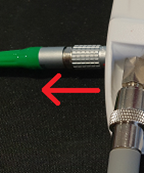
Start by connecting the round plug into the side of the ABPM device.
WARNING - Be gentle with the round plug on the side; the small pins inside can easily be damaged!
Line the two red dots up before pushing the cable into the socket. Gently push it directly in until there is a satisfying click sound, and it locks into place – do not rotate the plug!
8.After connecting the device to the computer, turn on or restart the deviceby using the gray power button until you see “co” on the screen.
9. If prompted, select your device type and then proceed by clicking “OK”.
10. CardioPerfect will communicate with the device before and after a prompt asking if you want to start a new test.
If a GDT interface warning message appears, please click Mit Transfer fotfahren (which means “continue with transfer”) then click Yes.
11. The ABPM Programming Finished window will appear. Review the message on screen then click OK.
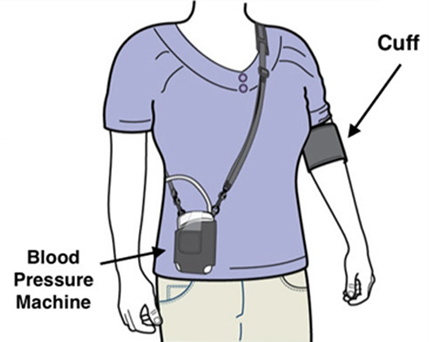
12. Disconnect your Welch AllynABPM device from your computer, place the ABPM cuff on the patient and the recorder into the pouch.
Follow the instructions printed on the cuff for placement. The pressure tube must go up and over the shoulder. Also make sure the cuff is 2 to 3cm from the arm joint. Also make sure you can fit two fingers between the cuff and the patient’s arm.
13. Press the Patient button on the device to start the first test – the automatic schedule will begin after this first manual test is complete.
5. LEMR Client should appear asking if you would like to start the scheduled test that you had recently programmed.
Choose “Yes” to continue.
6. You will then see CardioPerfect open with the correct patient. Proceed by clicking on the “Read measurements” button and select your device type.
7. You will then see this prompt containing patient details asking if you want to read the test. Proceed with “OK”.
The test will then shortly be imported automatically into LEMR Client.
8. When the LEMR Client window pops up, the test should be made ready for Best Practice to collect - the test icon will go from an uploading icon to a circled tick.
9. LEMR Server will detect the finished test and automatically import it into Best Practice. The imported test will be stored in Clinical Images. Click OK.