Increase size of buttons in Office Medic application on small screens with high resolution
By default, the size of the buttons in Office Medic do not change when DPI settings are adjusted in Windows. To force these DPI changes, we must use the Application Compatibility options available in Windows.
To do this:
- Find the Office Medic icon on the desktop
- Right-click on the icon and choose Properties
- Click on the Compatibility tab
- If you need to adjust the setting for all users on this computer, click on the Change settings for all users button; if you don't have permission to do this or you only need this setting for the current Windows user, proceed to the next step
- Click on the Change high DPI settings button
- Tick both boxes on the form, change the first dropdown to I open this program and the second dropdown to System (Enhanced)
- Click OK button for the two open property pages (three if the settings were changed or all users)
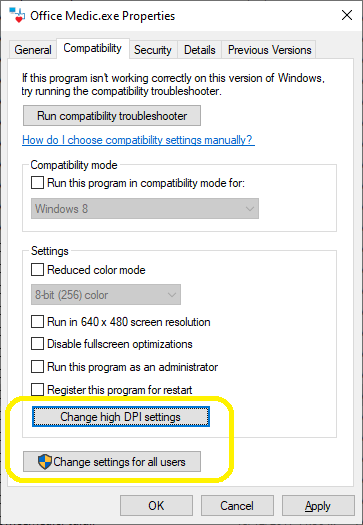
Compatibility tab
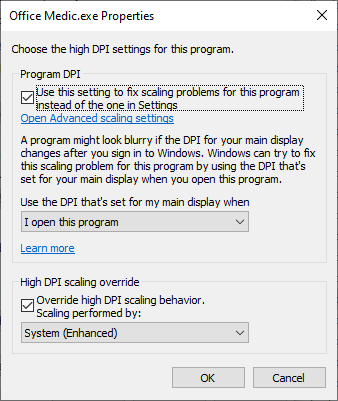
DPI settings property page
Need Help?
LEMR customers can get help by contacting LEMR Support.