Error -2147024809: Path cannot be the empty string or all whitespace.
When choosing Save and Print or when clicking on the Print icon on the toolbar in Office Medic on Windows 10 and 11 systems, PDF Writer - bioPDF may display the following error message:
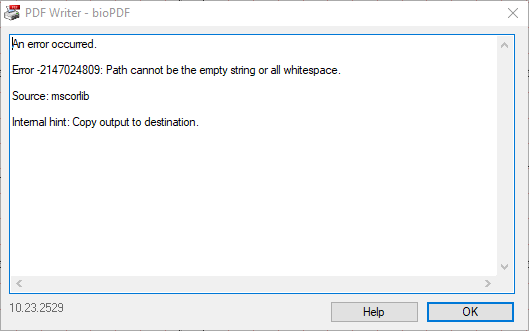
An error occured.
Error -2147024809: Path cannot be the empty string or all whitespace.
Source: mscorlib
Internal hint: Copy output to destination.
Office Medic expects a default printer to be set, which doesn't occur when Windows is managing the default printer automatically. Windows may then cause Office Medic to use the “PDF Writer - bioPDF” printer (that installs with Office Medic) as the default printer which causes this error to appear. Producing a PDF manually in Office Medic will cause this issue also.
Solution:
To solve this you will need to stop Windows from managing the default printer and set a default printer manually. If there is no physical printer available on the system to set as the default printer, set up a basic printer (like a canon inkjet with built in Windows driver) and direct it to a NULL port so it can't actually print, then set it as the default printer.
Windows 11:
1. Open the Printers & Scanners app

2. Scroll down and toggle off Allow Windows to manage my default printer

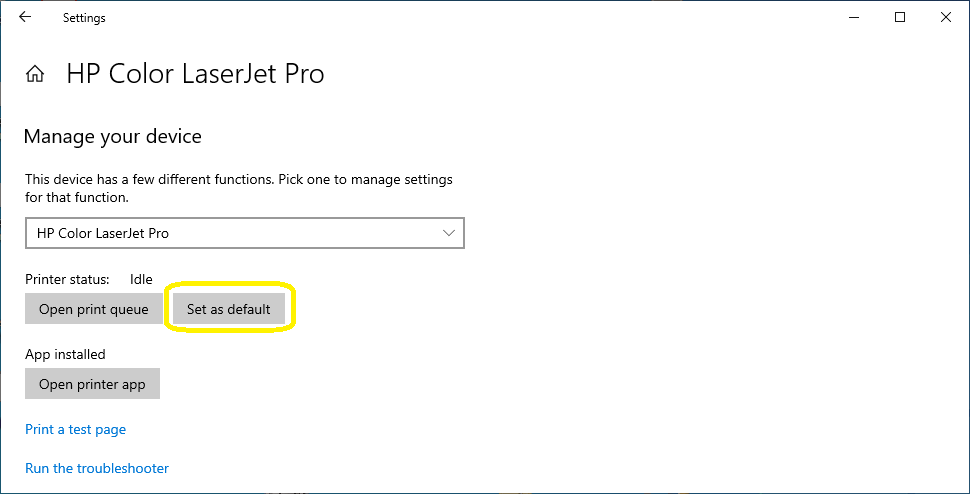
3. Then click on your physical printer in the list and click Set as default

Windows 10:
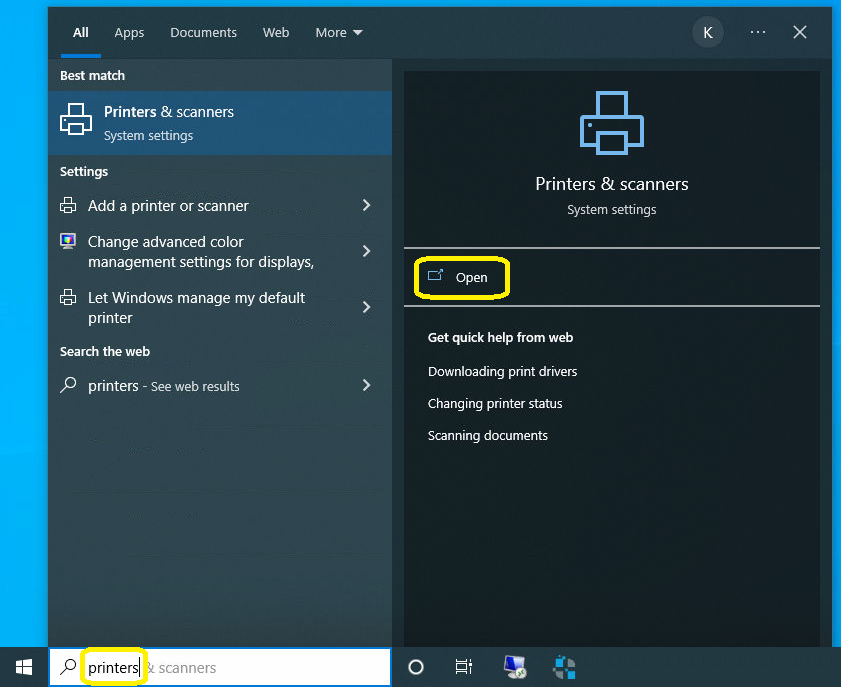
1. Open the Printers & Scanners app
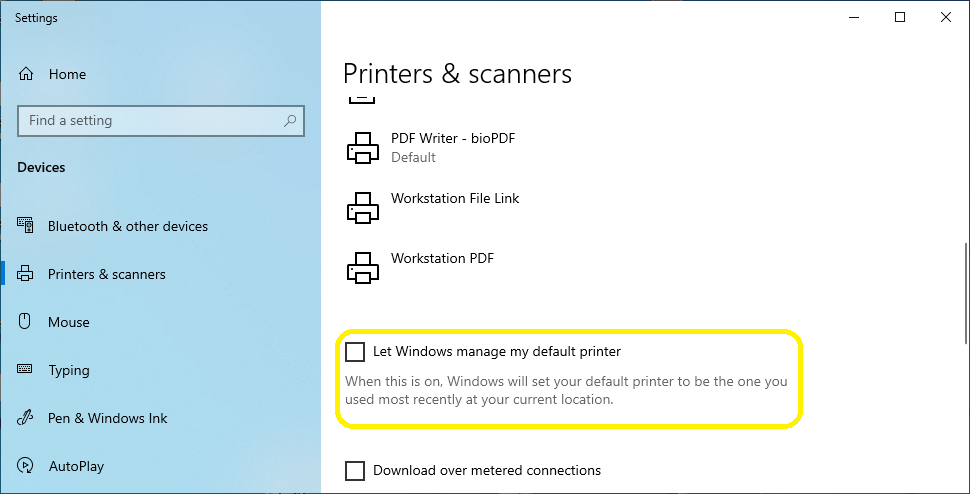
2. Scroll down and untick Let Windows manage my default printer
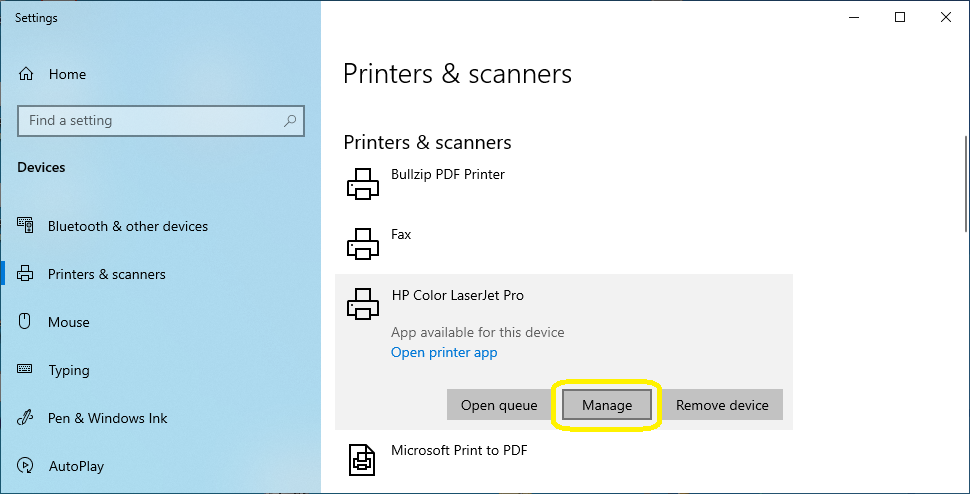
3. Find your preferred printer in the list above, click on it then click Manage
4. Click Set as default then close the window - you should be able to print in Office Medic now
Need Help?
LEMR customers can get help by contacting LEMR Support.