PC-ECG 1200 “USB driver is not connected” Error (Norav)
Problem
When you try to start a Resting ECG with a Norav ECG, you may experience the following error:
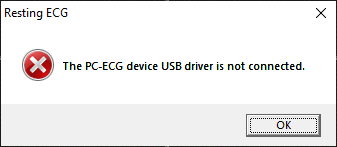
The PC-ECG device USB driver is not connected.
This can be caused by a number of issues:
- The device is not connected properly to the computer via the USB lead
- The USB lead between the computer and the Norav ECG is damaged
- The Windows driver is not installed
- Your ECG device has a fault (in this case, the device will need to be serviced by a qualified technician)
Please follow the instructions below to identify the cause of the error and hopefully solve the issue.
Solution 1: Check USB connection
The first troubleshooting step is to check the USB lead to ensure it is connected properly to the Norav ECG device and to ensure it is not damaged.

Ensure the USB plug from the ECG is connected properly to the PC

Ensure the USB plug from the PC is connected properly to the ECG device
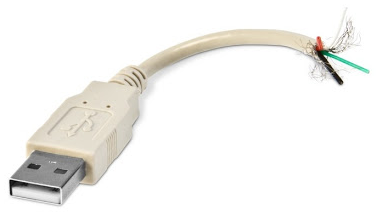
Check that the USB cable isn't damaged; this could range from a complete break in the cable to minor damage to the outer white plastic covering the wires. Also check for signs of chair leg or roller damage as this is common.
Solution 2: Install USB driver
If the USB cable is connected properly and not damaged, check that the Norav ECG device driver is installed properly. To do this, follow the instructions below.
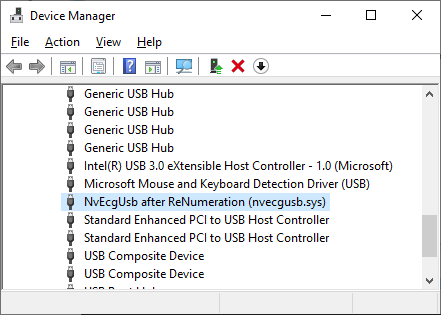
For Windows 10, in the search box on the taskbar, type device manager, then select Device Manager. If the device is connected though the driver is not installed, you will find the device listed as MvEcgUsb Device under Other devices. In this case, proceed to install the device driver. Please ensure that the Norav PC-ECG software is installed on the computer first.

Right click on NvEcgUsb Device then click on Update driver

Then click on Browse my computer for drivers. Enter or browse to the path where the drivers are located then click on Next.
On a 32 bit system: C:\Program Files\Common Files\Norav Shared
On a 64 bit system: C:\Program Files (x86)\Common Files\Norav Shared

Once completed, a message will appear to indicate the process was successful. Click Close then close Device Manager.

Your ECG device should now be good to go! If not, the device may need to be serviced; please contact us for further assistance.
Need Help?
LEMR customers can get help by contacting LEMR Support.